ChatGPT connects to the brain as a custom MCP app in developer mode. Full support (read and write) needs a Business, Enterprise or Edu workspace; Pro accounts get read access; Free and Plus cannot add it. It is web only: connectors do not appear in the mobile apps or in voice mode.
At a glance
| Works on | ChatGPT on the web (chatgpt.com). Not on mobile, not in voice mode |
| Plans | Business, Enterprise, Edu (full). Pro (read only). Free and Plus are not supported by OpenAI for custom MCP apps |
| Admin step | Business: only admins use developer mode, so an admin creates the app and publishes it, then members connect it. Enterprise and Edu: an admin grants developer mode, then members add it themselves |
| Sign-in | OAuth. ChatGPT opens a LAN Brain sign-in page |
| Time | Five minutes, plus the admin step if needed |
Before you start
Copy your MCP URL from the dashboard (Your brain, then Connect AI app):
https://YOUR-BRAIN.brain.lanbrain.ai/mcp
Step 1: turn on developer mode
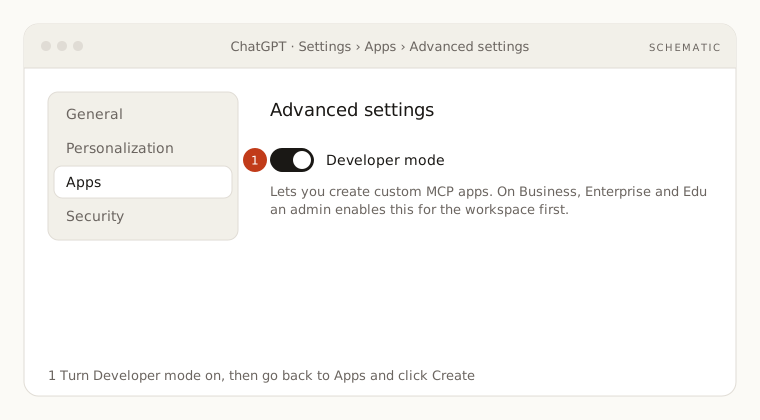
If you are on Business: only workspace admins and owners can use developer mode, and they cannot turn it on for members. An admin turns it on for themselves (Settings, then Apps, then Advanced settings, then Developer mode, or Workspace settings, then Apps, then Create), creates the app in Step 2, and publishes it from Workspace settings, then Apps, then Drafts, then Publish. Members skip developer mode: the published app shows under Settings, then Apps with a custom label, and each member clicks it and signs in.
If you are on Enterprise or Edu: an admin enables it under Workspace settings, then Permissions and Roles, then Connected Data. Members then turn it on for themselves under Settings, then Apps, then Advanced settings, then Developer mode.
If you are on Pro: open Settings, then Apps, then Advanced settings, and turn on Developer mode. You will be able to read the brain but not write to it.
Step 2: create the connector
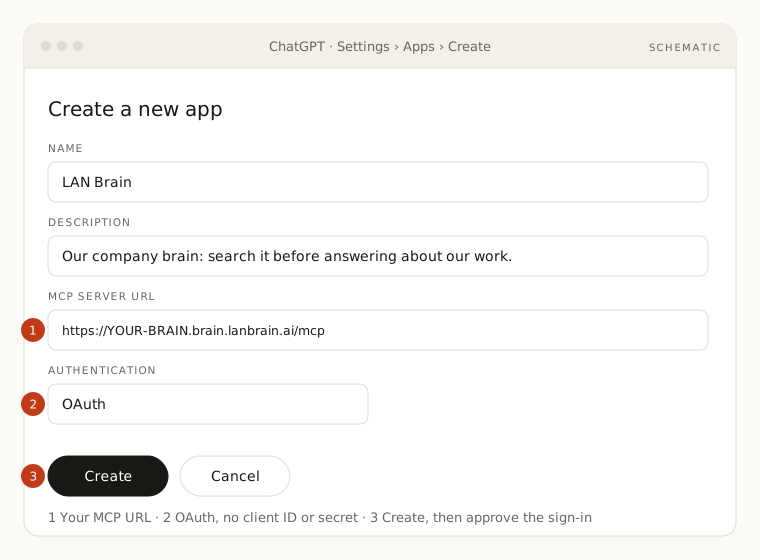
- In Settings, then Apps, click Create.
- Name it (for example
LAN Brain), add a one-line description, and paste your MCP URL as the MCP server URL. - Authentication: choose OAuth. Leave client ID and secret empty.
- Click Scan Tools. ChatGPT discovers the sign-in server, opens a LAN Brain page, and asks you to approve. Use the same account you use for the dashboard.
- When the scan finishes, click Create.
- ChatGPT lists the brain's tools and the app shows a Dev label. Leave the tools enabled.
Step 3: tell ChatGPT to use the brain
- Copy the instructions block from the dashboard's Connect AI app tab.
- Open Settings, then Personalization, then Custom instructions, make sure customization is enabled, and paste the block into the field about how ChatGPT should respond.
- Save. It applies to every new chat.
Using it in a chat
In a new chat, click the + button next to the message box, open More, and pick your connector. ChatGPT then calls the brain when a question needs it. If you changed anything on the brain side (new tools after an upgrade), open the app in Settings and click Refresh.
Try it
- "Search my company brain: what is our current position on remote work, and where is it documented?"
- "Prepare me for tomorrow's call with Acme. Pull everything the brain has on them and list open items."
- "Draft next week's team update from the last seven days of changes in the brain."
If something is off
- No Developer mode toggle: your plan does not include it, or your admin has not enabled it. On Business only admins get it; members connect the app an admin published. Free and Plus do not get custom MCP apps.
- The connector disappears after a while: ChatGPT lost the refresh token. Open the app in Settings and sign in again.
- It works on the web but not on my phone: expected. OpenAI has not shipped MCP apps on mobile.
- Tools show but ChatGPT answers from memory: paste the instructions block (Step 3) and start a new chat.
More in Troubleshooting.