With the brain connected, Cursor's agent reads your company's technical decisions, conventions and system cards before it edits a file, and it can file what it learns back. One JSON entry, one login.
At a glance
| Works on | Cursor on macOS, Windows and Linux |
| Plans | Any plan with MCP support (all current plans) |
| Sign-in | OAuth. Cursor shows a login button next to the server |
| Time | Two minutes |
| Instructions live in | User Rules (global) or .cursor/rules/ (per repo) |
Step 1: add the brain to mcp.json
Global, for every project: ~/.cursor/mcp.json. Per repo, shared with your team: .cursor/mcp.json at the repo root.
json
{
  "mcpServers": {
    "lan-brain": {
      "url": "https://YOUR-BRAIN.brain.lanbrain.ai/mcp"
    }
  }
}
Replace the URL with your MCP URL from the dashboard (Your brain, then Connect AI app). More than one brain: add one entry per brain with distinct names.
Step 2: sign in
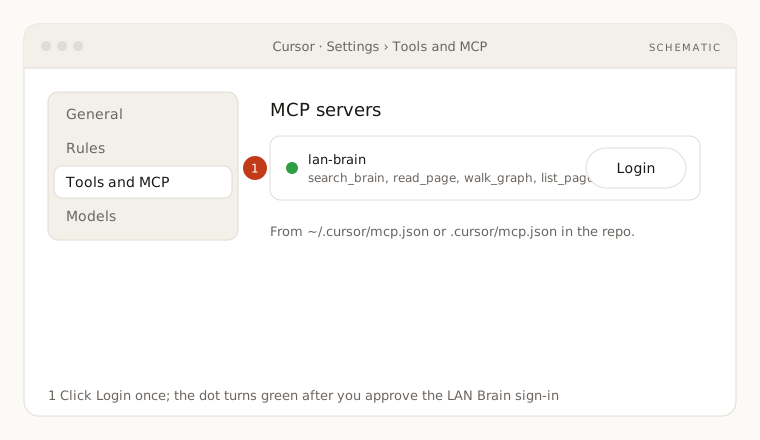
- Open Cursor settings and go to the MCP section (Tools and MCP in the Customize sidebar on recent builds).
lan-brainappears with a Needs login badge or a Login button. Click it.- Your browser opens the LAN Brain sign-in page. Approve with your usual account.
- Back in Cursor the server turns green and lists its tools.
Step 3: put the instructions in your rules
- Copy the instructions block from the dashboard's Connect AI app tab.
- For everything you do in Cursor: Cursor settings, then Rules, then User Rules. Paste it there.
- For one repo, shared with the team: create
.cursor/rules/company-brain.mdcwith the block as its body andalwaysApply: truein the frontmatter:
markdown
---
description: Use the company brain as the source of truth
alwaysApply: true
---
My LAN Brain connector is the source of truth about Acme: its business, people, and decisions.
Before answering anything that depends on my context, call search_brain first.
If the brain has nothing, say so instead of guessing. When the brain conflicts
with what you think you know, the brain wins; cite the page path.
Do NOT use the connector for general knowledge: definitions, public facts,
coding help, anything you could answer without knowing me.
Try it
In the agent chat:
- "Check the brain for our API conventions before you scaffold this endpoint."
- "What did we decide about database migrations? Link the decision and follow it."
- "We just settled the logging format in this session. File it in the brain under engineering conventions."
If something is off
- Tools do not show up in the agent: enable the server in the MCP settings, and make sure you are in Agent mode; plain chat does not call tools.
- Login button never turns green: you approved with an account that has no access to that brain. Sign out at lanbrain.ai, then click Login again.
- Everything worked yesterday and stopped today: the session expired. Click the server in settings and log in again.
More in Troubleshooting.