Gemini reaches the brain three different ways depending on how you use it: the Gemini app for personal Google accounts, the Gemini CLI for developers, and Gemini Enterprise for companies on Google Cloud. Pick the section that matches you.
At a glance
| Gemini app | Custom connectors are available to personal Google accounts, 18+, located in the US, with Keep Activity on. English only for now. Work and school accounts do not see the option yet |
| Gemini CLI | Full support on any machine, OAuth from the terminal |
| Gemini Enterprise | Full support; a Google Cloud admin registers the brain and enables the tools |
| Sign-in | OAuth in every case |
Before you start
Copy your MCP URL from the dashboard (Your brain, then Connect AI app):
https://YOUR-BRAIN.brain.lanbrain.ai/mcp
Option A: the Gemini app (gemini.google.com)
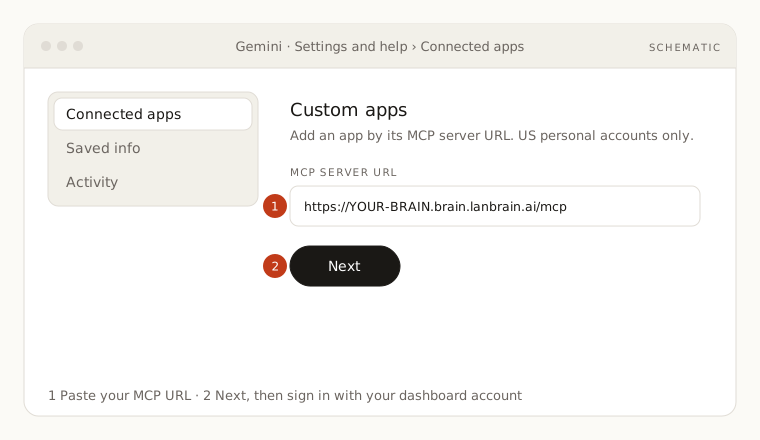
- At the bottom left, click Settings, then Connected Apps (on some accounts: Personal Intelligence, then Connected Apps).
- Under Custom apps, choose Add a custom app.
- Paste your MCP URL and click Next.
- Sign in on the LAN Brain page with the same account you use for the dashboard and approve.
- The brain appears in your connected apps. In a chat, mention it or ask a question about your work and Gemini calls it.
Tell Gemini to use the brain: open Settings and help, then Personal Intelligence, then Instructions for Gemini, and paste the instructions block from the dashboard's Connect AI app tab. Why this matters.
Option B: the Gemini CLI
- Open
~/.gemini/settings.json(create it if needed) and add the brain. For a single project use.gemini/settings.jsoninside the repo instead:
{
  "mcpServers": {
    "lan-brain": {
      "url": "https://YOUR-BRAIN.brain.lanbrain.ai/mcp",
      "type": "http"
    }
  }
}
- Start
gemini. Type/mcpto see the server. If it shows as needing authentication, run:
/mcp auth lan-brain
- Your browser opens the LAN Brain sign-in page. Approve, return to the terminal, and the tools are listed.
Tokens are kept by the CLI in ~/.gemini/mcp-oauth-tokens.json; you will not be asked again until they expire.
Tell the CLI to use the brain: the Gemini CLI reads a GEMINI.md file in the project or in ~/.gemini/. Paste the instructions block there, the same way Claude Code uses CLAUDE.md.
Option C: Gemini Enterprise
Only an admin can add a data source. Send them this:
- In the Google Cloud console open Gemini Enterprise, then Data stores, then Create.
- Search for Custom MCP Server, choose OAuth 2.0 as authentication, and paste the brain's MCP URL. The brain publishes its sign-in discovery documents, so no client ID needs to be pasted; if the form insists on one, LAN can issue it (info@lanbrain.ai).
- Name the data store and create it. Then enable the individual tools you want members to have; Google enables none by default.
search_brain,read_page,get_context_pack,walk_graphandlist_pagesare the reading set. - Members sign in through the OAuth prompt the first time they use it.
On the Business edition of Gemini Enterprise the path is Settings and help, then Manage team, then Connected apps, then Add MCP server, with the same OAuth fields.
Try it
- "Using my company brain, what are the open items with our top three clients?"
- "Read the onboarding page for new hires and tell me what a sales rep should do in week one."
- "What is our refund policy, and which page is it on?"
If something is off
- No Custom apps section in the Gemini app: account not eligible (work account, outside the US, or under 18). Use the CLI or ask your admin about Enterprise.
- CLI says the server is disconnected: the URL must end in
/mcp, and thetypemust behttp. Run/mcpagain after fixing the file. - Gemini answers from memory: paste the instructions block in Instructions for Gemini (app) or
GEMINI.md(CLI) and start a new chat.
More in Troubleshooting.